Because ActivityHD is data-centric, you have lots of data at your disposal. Sometimes the sheer volume of data can be overwhelming. You can use filters to reduce the data in a view to just the records you need to see. You can use Maintain Filters to create and modify filters for each entity.
In the Navigation pane, right-click the entity folder you want to create a filter for and select Maintain Filters from the shortcut menu.
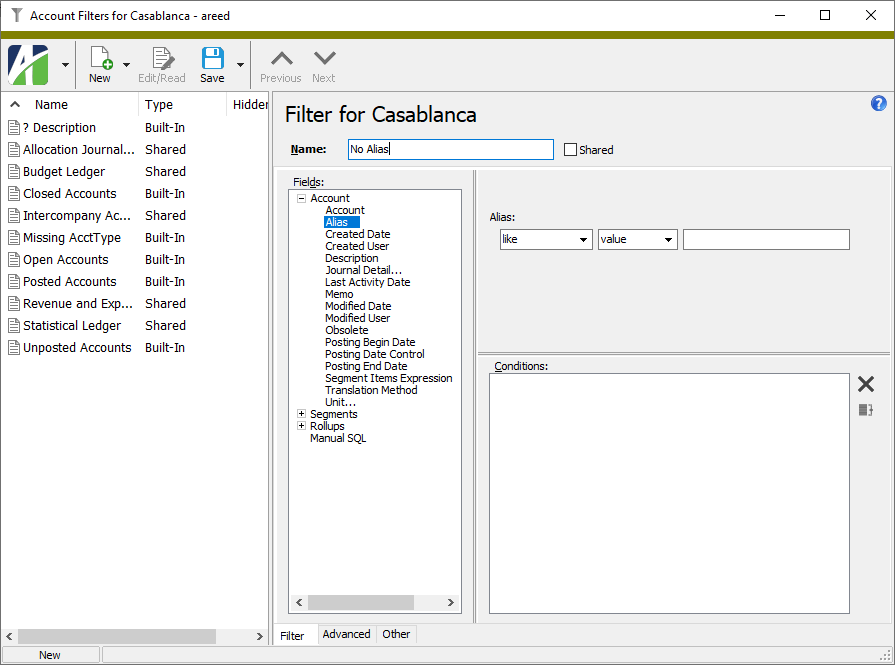
In the Maintain Filters dialog box in the Name field, enter a descriptive name for the filter.
If you want other users to have access to the filter, mark the Shared? checkbox.
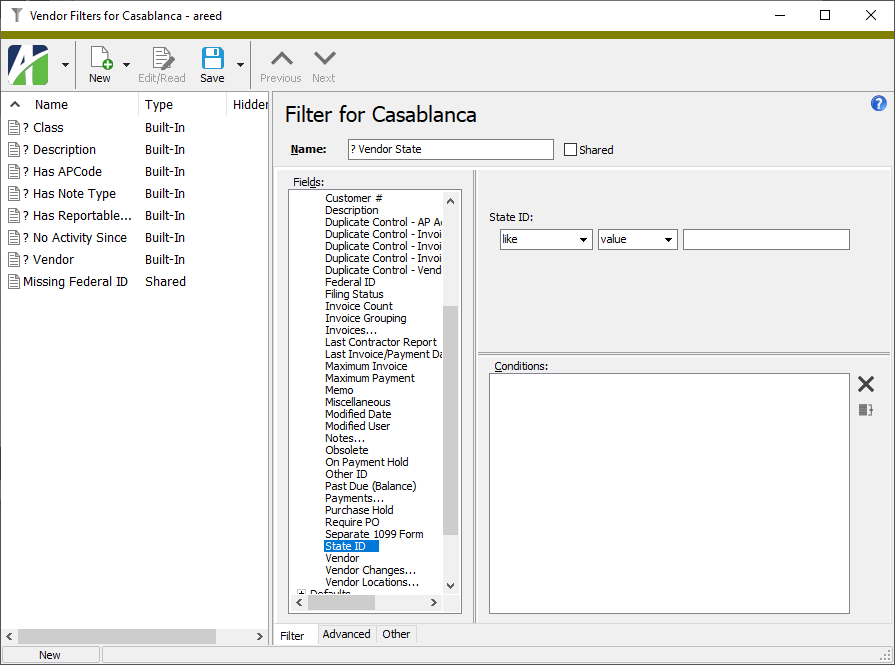
In the Fields list box, expand the entity list that contains the field you want to specify filtering conditions on (if it's not already expanded), then highlight the field name. Condition prompts load in the panel to the right.
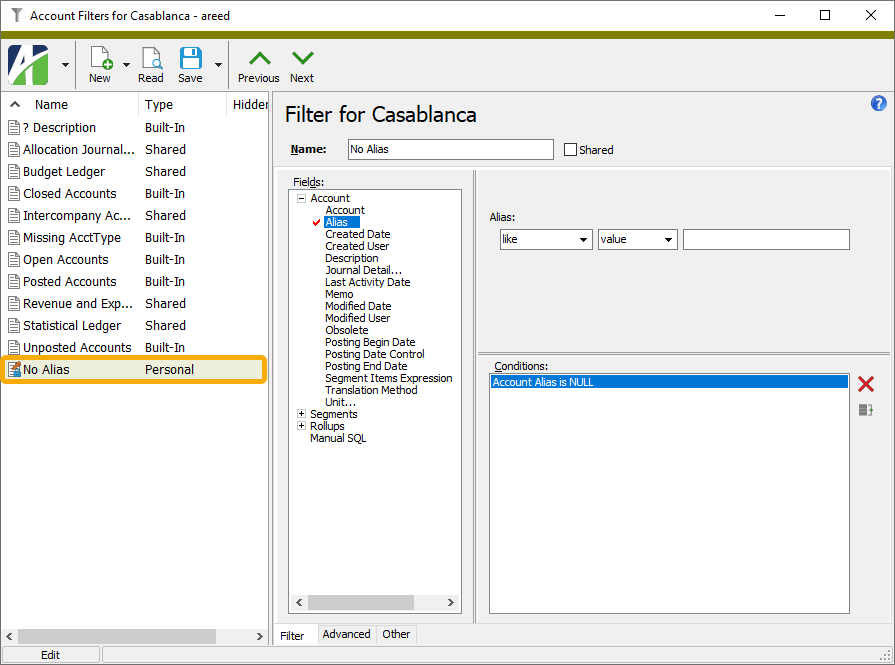
Respond to the prompts as appropriate.
Save the filter. The filter is added to the Filter list.
Sometimes you need a filter that returns the same type of results but with different input(s). Rather than create a filter for each change in criterion, ActivityHD lets you create one filter that prompts you for the variable information each time you apply the filter. This type of filter is a prompting filter.
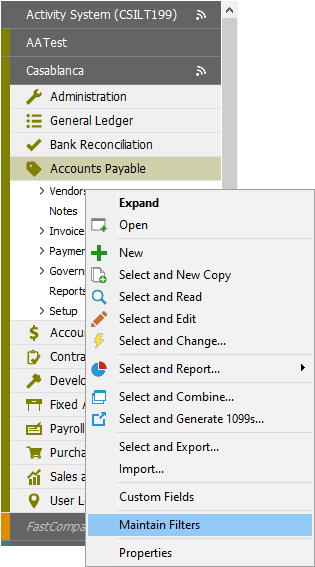
In the Navigation pane, right-click the entity folder you want to create a prompting filter for and select Maintain Filters from the shortcut menu.
In the Maintain Filters dialog box, type a question mark (?) followed by a descriptive name for the filter in the Name field.
If you want other users to have access to the filter, mark the Shared? checkbox.
In the Fields list box, expand the entity list that contains the field you want to specify filtering conditions on (if it's not already expanded), then highlight the field name. Condition prompts load in the panel to the right.
Note
You can only define a prompting filter on fields with condition prompts that permit you to select a comparison operator.
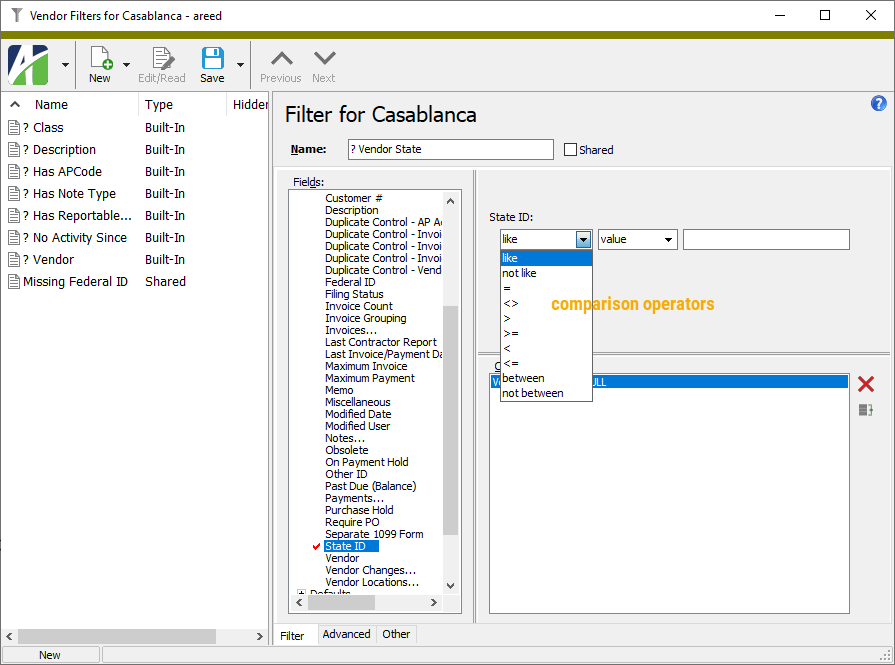
From the first drop-down list, select the comparison operator to use.
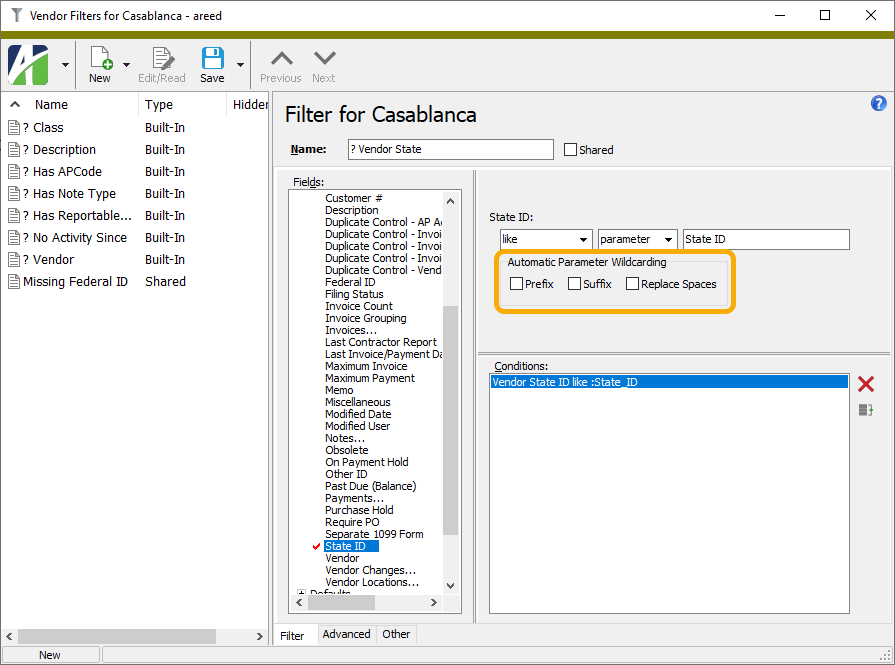
From the second drop-down list, select "parameter". ActivityHD fills in the parameter name for you.
If you selected the "like" or "not like" operator in the first drop-down list, an Automatic Parameter Wildcarding section is added below the condition prompts for the field.
If you want ActivityHD to apply wildcards to the parameter value that is entered when the filter is applied to data, mark the checkbox(es) for the locations to add wildcards to. Your options are:
Prefix. Adds a wildcard (*) before the parameter value.
Suffix. Adds a wildcard (*) after the parameter value.
Replace Spaces. Replaces any spaces in the parameter value with a wildcard (*).
If there are additional condition prompts, respond to them appropriately.
When you finish, save the filter. The filter is added to the Filter list.
A built-in filter cannot be modified. If you need a filter that is similar to a built-in filter, open the Maintain Filters dialog box, highlight the built-in filter in the left panel, then click and select New Copy. Modify the copy of the built-in filter and save it with a new name.
In the Navigation pane, right-click the entity folder with the filter you want to modify and select Maintain Filters from the shortcut menu.
In the Filter list, highlight the filter to modify to load its details in the right side of the window.
In the Fields list box, locate and highlight the field you need to modify or add to the filter.
Make the needed changes to the filter. Follow the directions that apply to the action you need to take:
Delete - To remove a field from the filter, delete all conditions on the field. To do so, highlight the condition(s) and click .
Change - To change the conditions on a field, change the settings which define the conditions on the field.
Add - To add a field, respond to the prompts appropriately.
When you finish, save the filter.
Note
If you modify a filter that is currently applied, you must unapply and reapply the filter to see the effects of your changes.
If you regularly use a few filters and would prefer the filters you rarely or never use to be out of sight, you can hide the filters you don't want to see.
In the Navigation pane, right-click the entity folder associated with the filter you want to hide and select Maintain Filters from the shortcut menu.
In the Filter list, highlight the filter to hide.
Select the Advanced tab.
Mark the Hidden checkbox.
Save your changes.
To restore a hidden filter, follow the same steps, but clear the Hidden checkbox.
ActivityHD can remember the arrangement of columns you used the last time you applied a particular personal or shared filter so that you do not need to arrange the columns the next time you apply the filter.
In the Navigation pane, right-click the entity folder associated with the filter you want ActivityHD to recall the column arrangement for and select Maintain Filters from the shortcut menu.
In the left pane, highlight the filter you want ActivityHD to recall the column arrangement for.
A filter condition is the predicate of a SQL WHERE clause. If you prefer, you can write the filter conditions using SQL directly rather than using the software interface to build the filter conditions. You can also combine the two methods.
Open the Maintain Filters dialog box for the entity you want to manage filters for.
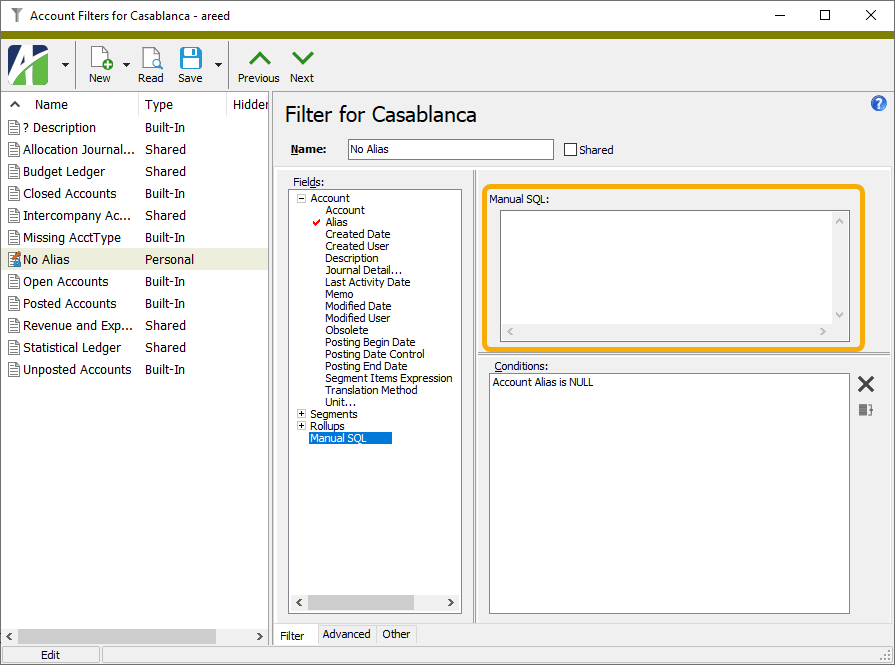
On the Filter tab in the Fields list box, highlight "Manual SQL" (at the bottom of the list). A Manual SQL text box is added in the right panel.
In the Manual SQL field, enter the conditions to apply.
Select the Advanced tab.
Click Check Conditions. ActivityHD will notify you if the conditions are error-free. Otherwise, ActivityHD notifies you of syntax problems so that you can make corrections.
After you resolve any syntax problems, save your changes.
ActivityHD provides a "sounds like" filter so that you can search names, descriptions, etc., when you don't know the exact spelling. To accomplish this, ActivityHD uses a function called SOUNDEX. Creating a SOUNDEX filter combines the parameter filter concept with manual SQL.
Open the Maintain Filters dialog box for the entity you want to add a SOUNDEX filter for.
In the Name field, type a question mark (?) followed by a descriptive name for the filter.
Example
? Last name sounds like
On the Filters tab in the Fields pane, highlight "Manual SQL". A Manual SQL text box is added in the section to the right of the Fields pane.
An easy way to determine the field name and the parameter name is to select the field name in the Fields list and select the "like" or "=" operator with the "parameter" option. Go to the Advanced tab and you will find the field name and the parameter name in the SQL Conditions box. If you do this, don't forget to delete the bogus conditions from the Conditions text box on the Filters tab before proceeding.
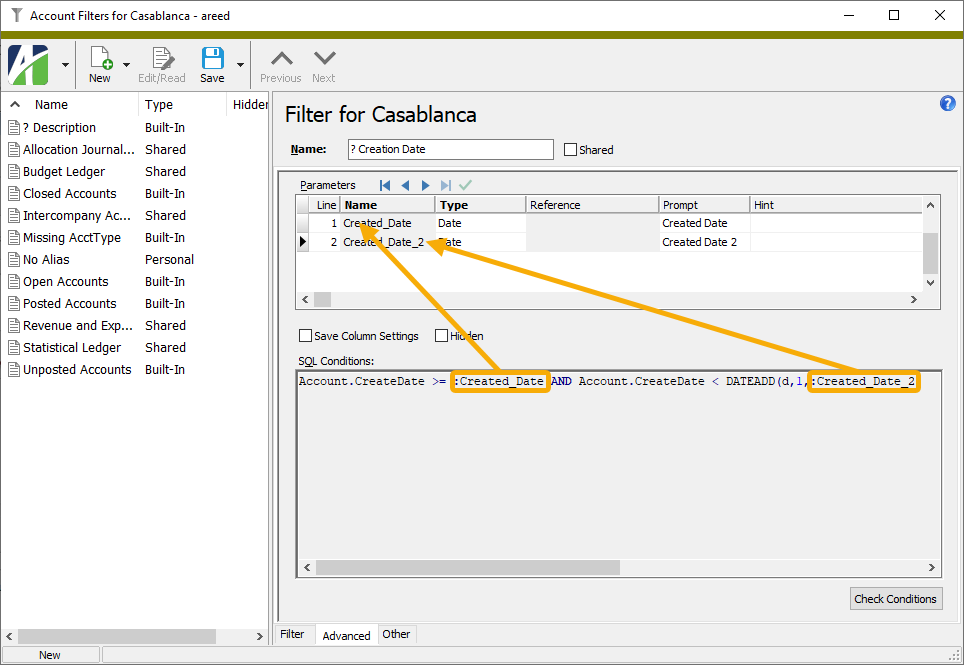
On prompting filters, ActivityHD lets you specify the field type, the prompt text, and the hint text for the prompt. By default, parameter prompts default to their native field type. Nonetheless, you can change the field type if need be. A type of "date" ensures that the field is formatted to accept date inputs and that the field includes a pop-up calendar for selecting a date. A type of "reference" allows you to specify the table that contains the valid values for the field and provides look-up capability.
To customize a prompting filter:
Set up the prompting filter as described in "Create a prompting filter" above or load an existing prompting filter.
Select the Advanced tab. Note that the Parameters table has a row for each parameter the filter prompts for.
Note
In the SQL Conditions box, parameters are preceded by a colon (:).
For each row in the Parameters table that you need to change, do the following:
From the Type drop-down list, select the data type for the parameter. Your options are:
String
Date
Time
Reference
Reference Mask
In the Prompt field, enter the label to use when prompting for the parameter value.
In the Hint field, enter hint text to help the user know what to enter.
When you finish, save your changes.
Filter pane
The list box shows existing built-in, personal, and shared filters. To edit or view a filter, highlight it in the list to load its details in the Filters window.
Filter
The filter name. Standard notation for a prompting filter is to precede its name with a question mark (?).
Type
The filter type. Valid types are:
Built-in. Built-in filters are installed with ActivityHD.
Personal. Personal filters are filters that you create for your own use.
Shared. Shared filters are personal filters that you or another user has decided to make available to other users.
Hidden
If a filter is flagged on the Advanced tab as a hidden filter, the word "Hidden" displays for the filter in this column. Otherwise, the column will be blank for the filter.
Filter Record ID
Name
The name of the filter.
Shared
If the checkbox is marked, indicates that the current filter is a filter that a user has decided to make available to other users.
Filter tab
Fields list box
Lists the fields, by entity, that are available for inclusion in the filtering conditions. The nodes in the list represent entities; when a node is expanded, the available fields for that entity are shown. Items in the field list followed by an ellipsis (...) represent related entities on which conditions can be defined by clicking the More button that appears in the condition builder tool above the Conditions list box. The last item in the list, "Manual SQL", is a special option which allows you to write filter conditions using SQL directly.
Condition builder section
The prompts in this section vary depending on the field selected in the Fields list box. Respond to the prompts accordingly. The following types of prompts are common:
From the first dropdown, select the operator to use to determine whether a value matches the selection criteria. Your options are:
like
not like
=
<> (not equal)
<
<=
>
>=
between
not between
From the second dropdown, select how to determine the value used to return matches to the filter. Your options are:
value. Select this option to specify an explicit value.
parameter. Select this option to allow the user to select a value when the filter is invoked.
Input in the third field depends on whether "value" or "parameter" is selected in the previous field.
If you selected "value", enter or select the field value for the filter to match.
If you selected "parameter", the field name is auto-filled in the third field. The user can select from a list of valid field values when the filter is invoked.
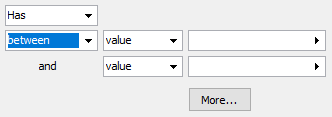
If you selected "between" or "not between" in the first field, two additional fields which mirror the second and third fields are added so that a range of values can be specified. Repeat steps 2 and 3 to complete these fields.
From the first dropdown, select the operator to use to determine whether a date matches the selection criteria. Your options are:
like
not like
=
<> (not equal)
<
<=
>
>=
between
not between
From the second dropdown, select how to determine the date used to return matches to the filter. Your options are:
value. Select this option to specify an explicit date or a date expression.
parameter. Select this option to allow the user to specify a date or date expression when the filter is invoked.
Input in the third field depends on whether "value" or "parameter" is selected in the previous field.
If you selected "value", enter or select the date or date expression for the filter to match.
If you selected "parameter", the field name is auto-filled in the third field. The user can specify a date or date expression when the filter is invoked.
By default, "between" is selected in the first field, and if either "between" or "not between" are selected, two additional fields which mirror the second and third fields are displayed so that a date range can be specified. Repeat steps 2 and 3 to complete these fields.
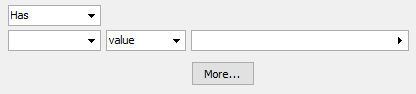
From the first dropdown, select whether the filter results should have or should not have the specified condition. Your options are:
Has. The condition should be true for the filter results.
Does not have. The condition should be false for the filter results.
From the second dropdown, select the operator to use to determine whether a value matches the selection criteria. Your options are:
like
not like
=
<> (not equal)
<
<=
>
>=
between
not between
From the third dropdown, select how to determine the value used to return matches to the filter. Your options are:
value. Select this option to specify an explicit value.
parameter. Select this option to allow the user to select a value when the filter is invoked.
Input in the fourth field depends on whether "value" or "parameter" is selected in the previous field.
If you selected "value", enter or select the value for the filter to match.
If you selected "parameter", the field name is auto-filled in the fourth field. The user can select from a list of valid field values when the filter is invoked.
If you selected "between" or "not between" in the first field, two additional fields which mirror the third and fourth fields are added so that a range of values can be specified. Repeat steps 3 and 4 to complete these fields.
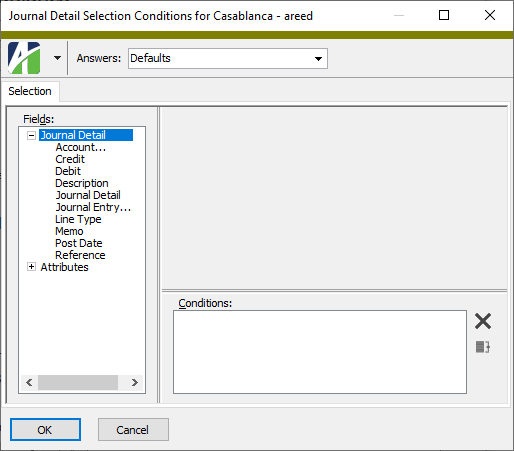
If you want to specify additional conditions on the selected entity, click More. A popup window opens with a familiar interface.
Specify conditions in the same manner as you would in the original Selection tab. When you finish, click OK to apply the conditions back in the original window.
Conditions list box
A filter condition is the predicate of a SQL WHERE clause. When the controls in the condition builder tool above are used to specify conditions, the conditions are added to this list box. The buttons next to the list box allow you to modify the listed conditions:
- Deletes the selected condition(s) and/or grouping(s).
- When two or more conditions are selected, groups the conditions. (Use Ctrl or Shift selection to highlight multiple items.) Grouping is indicated by (...). When the grouping indicator is selected, options appear in the condition builder tool that allow you to specify how to apply the grouped conditions.
Advanced tab
Parameters table
If the filter is set up to prompt for user input, the table shows each parameter prompted for and its characteristics.
Line
The line number assigned to the parameter. The cells in this column are editable and can be used to rearrange the rows in the table.
Name
The name of the parameter.
Type
The data type for the parameter value. Valid types are:
String
Date
Time
Reference
Reference Mask
Reference
The cells in this column are disabled unless "Reference" or "Reference Mask" is selected in the Type column. If enabled, shows the resource selected to provide allowable values for the parameter.
Prompt
The label to use to prompt for the parameter value.
Hint
Hint text to help the user know what to select.
Save Column Settings
If this checkbox is marked, ActivityHD will remember the arrangement of columns used the last time you applied the filter so that it is not necessary to arrange the columns again the next time you apply the filter.
Hidden
If the checkbox is marked, the filter will be hidden from Filters drop-down lists. This option is useful if you typically use only a few filters frequently and want the filters that you rarely or never use to be out of the way.
SQL Conditions
Displays the SQL WHERE clause predicate which results from the specified filter conditions. Notice that if the SQL conditions reference one or more parameters, the parameter names are preceded with a colon (:). The content of the text box cannot be edited directly. To change the content, modify the filter conditions specified on the Filter tab.
Check Conditions button
Click this button to check the current SQL conditions for syntax errors.
Other tab
Memo tab
To include additional information about this record not collected elsewhere, enter it in this text box. This area supports common keyboard shortcuts such as Ctrl+C to copy and Ctrl+V to paste.
Timestamps tab
This tab shows the user who created this record and the date and time of creation as well as the user, date, and time of the latest modification to the record.
Comparison operators
A comparison operator is a symbol or phrase that indicates how to compare data values. ActivityHD uses comparison operators to construct filter conditions on some fields.
The following table shows the comparison operators available in ActivityHD. The set of operators available in a particular context depends on the data type of the field you are performing comparisons on.
Operator
Action
like
Looks for values that match a specified pattern. Wildcards such as * and ? can be used to designate variable parts of the pattern.
not like
Looks for values that do not match a specified pattern. Wildcards such as * and ? can be used to designate variable parts of the pattern.
=
Looks for values that are equal to the value specified.
<>
Looks for values that are not equal to the value specified.
>
Looks for values that are greater than the value specified.
>=
Looks for values that are greater than or equal to the value specified.
<
Looks for values that are less than the value specified.
<=
Looks for values that are less than or equal to the value specified.
between
Looks for values that fall between the value specified and another value.
not between
Looks for values that do not fall between the value specified and another value.
 Create a basic filter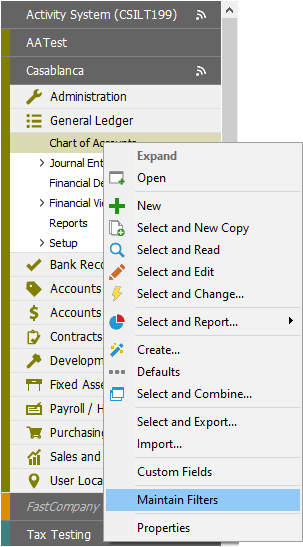
 and select New Copy. Modify the copy of the built-in filter and save it with a new name.
 .
.




 - Deletes the selected condition(s) and/or grouping(s).
 - When two or more conditions are selected, groups the conditions. (Use Ctrl or Shift selection to highlight multiple items.) Grouping is indicated by (...). When the grouping indicator is selected, options appear in the condition builder tool that allow you to specify how to apply the grouped conditions.